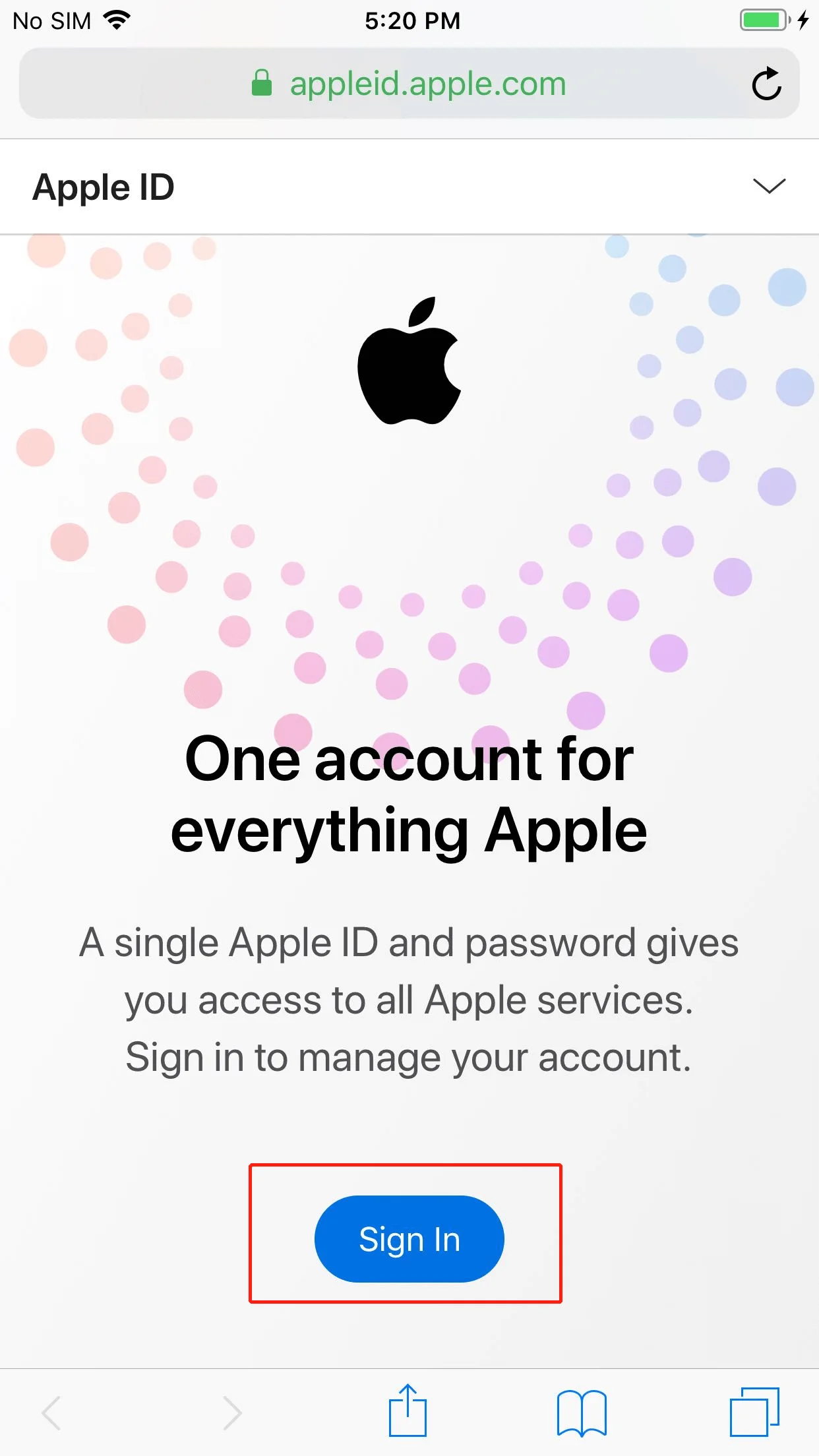
Go to https://appleid.apple.com and select "Sign In" at the top right of the page, enter your Apple ID and Password and click "Sign In".
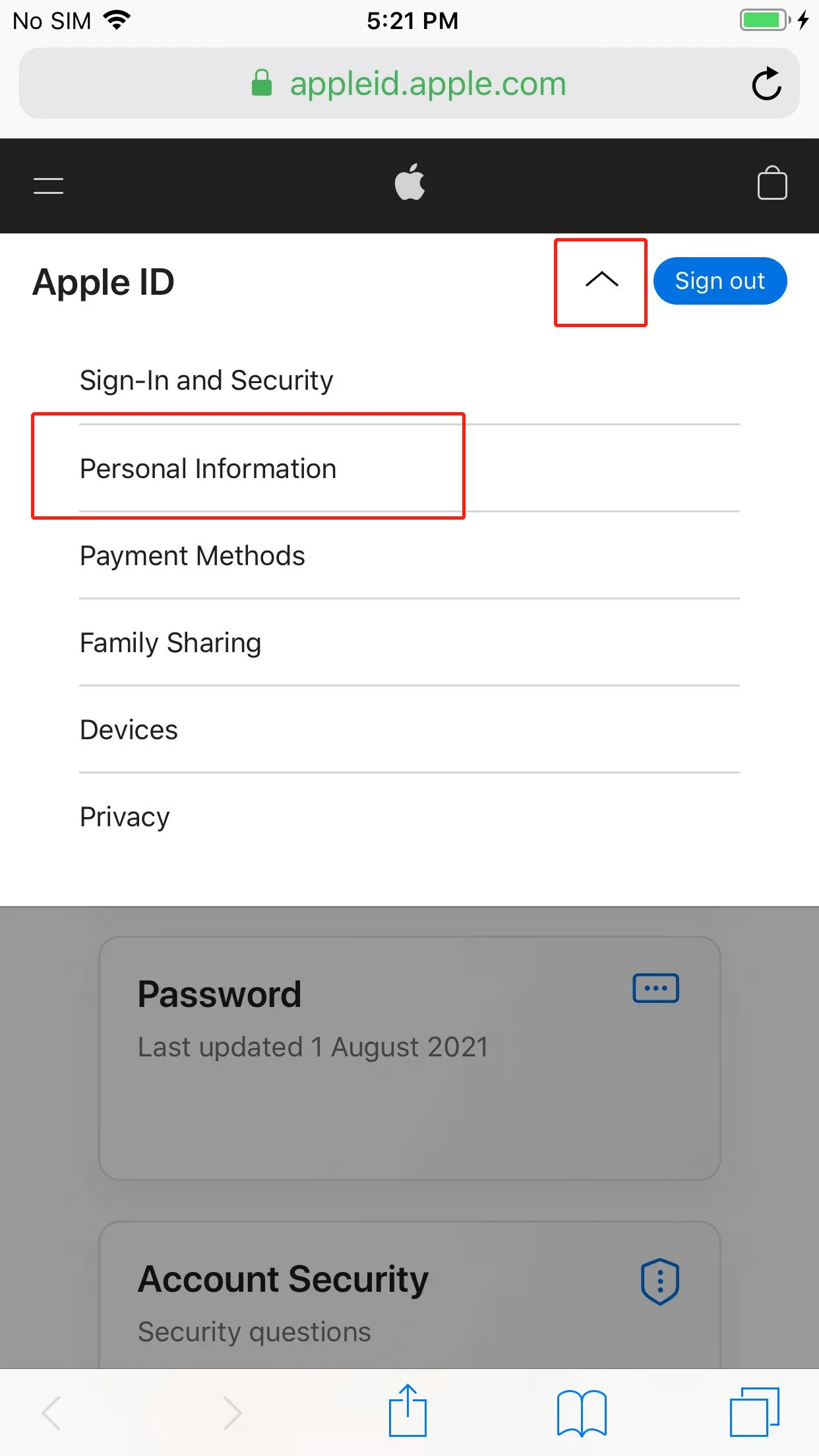
After login successful, select "Personal Information" at the top right drop-down menu.
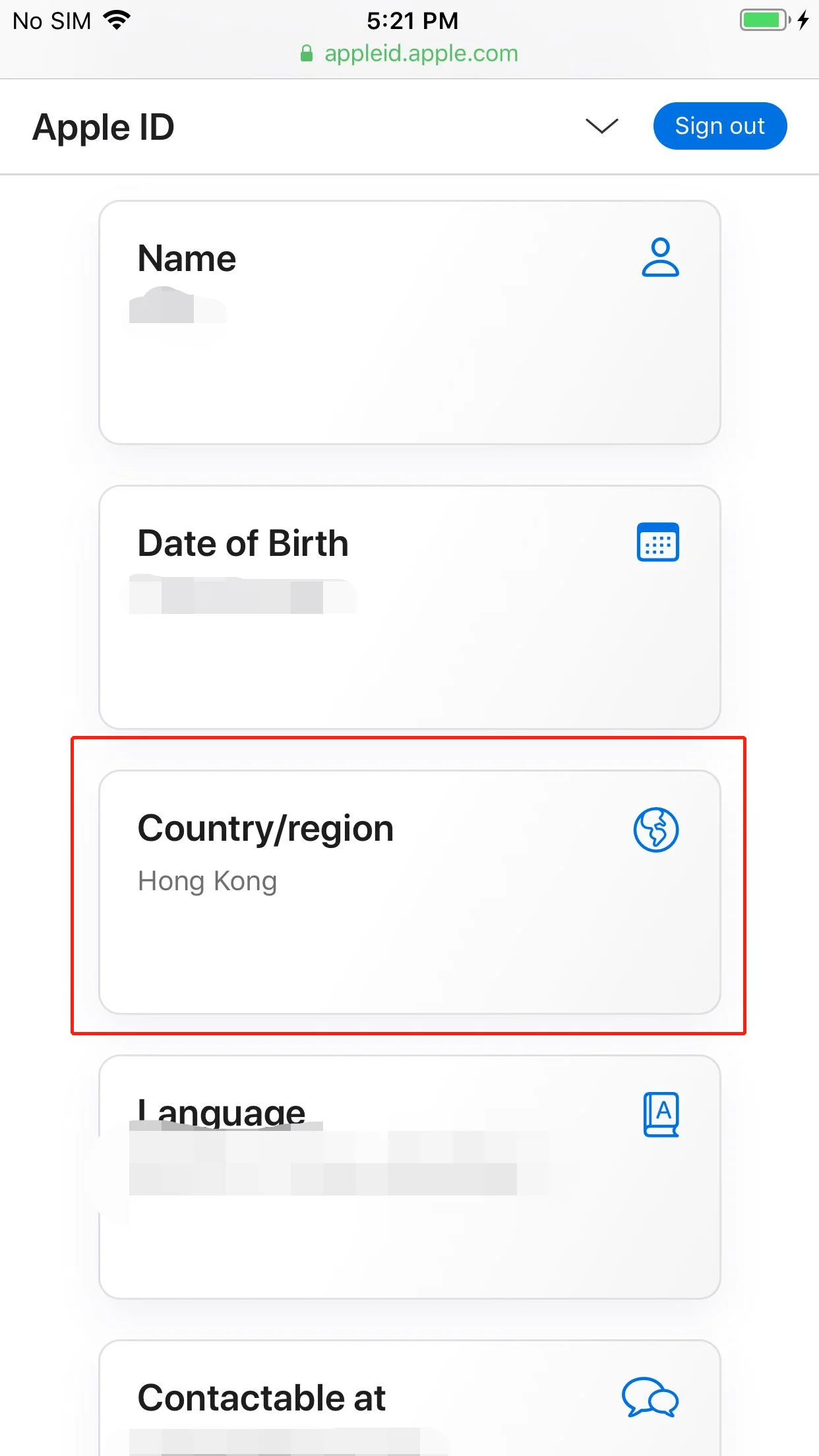
Select "Country/Region" at the personal information page. Enter your Apple ID and Click "Sign in".
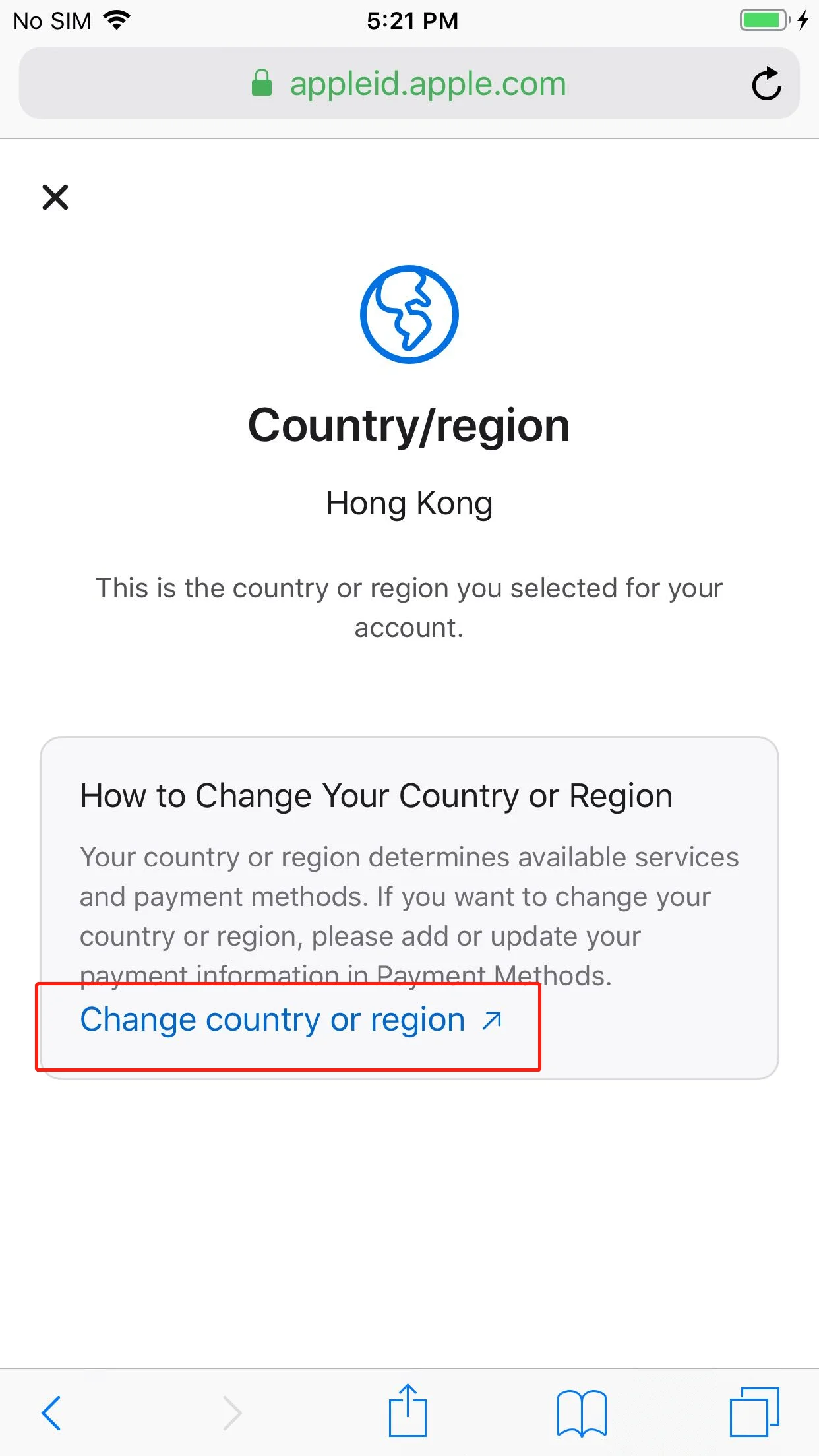
Select "Change country or region" on the Country/Region page. If you are prompt that you cannot change the Country/Region, please use other methods to download.
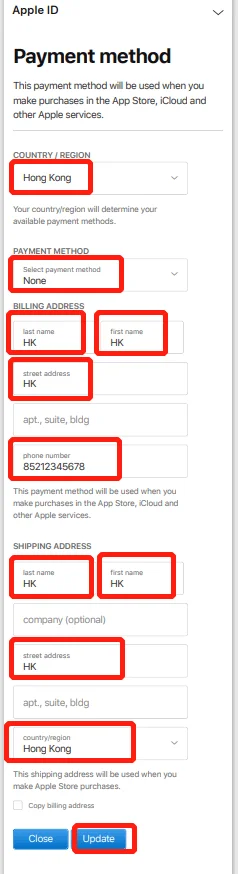
Complete the form with your own accurate details. For Country or Region, select the country where you are currently located and hold a valid payment method, Apple requires both. Enter your real name, address and phone number; inaccurate details may cause the change to fail or your account to be restricted. If you cannot complete the change, your account most likely has an active subscription or a remaining balance, see Apple's official guide on changing your Apple Account country or region.
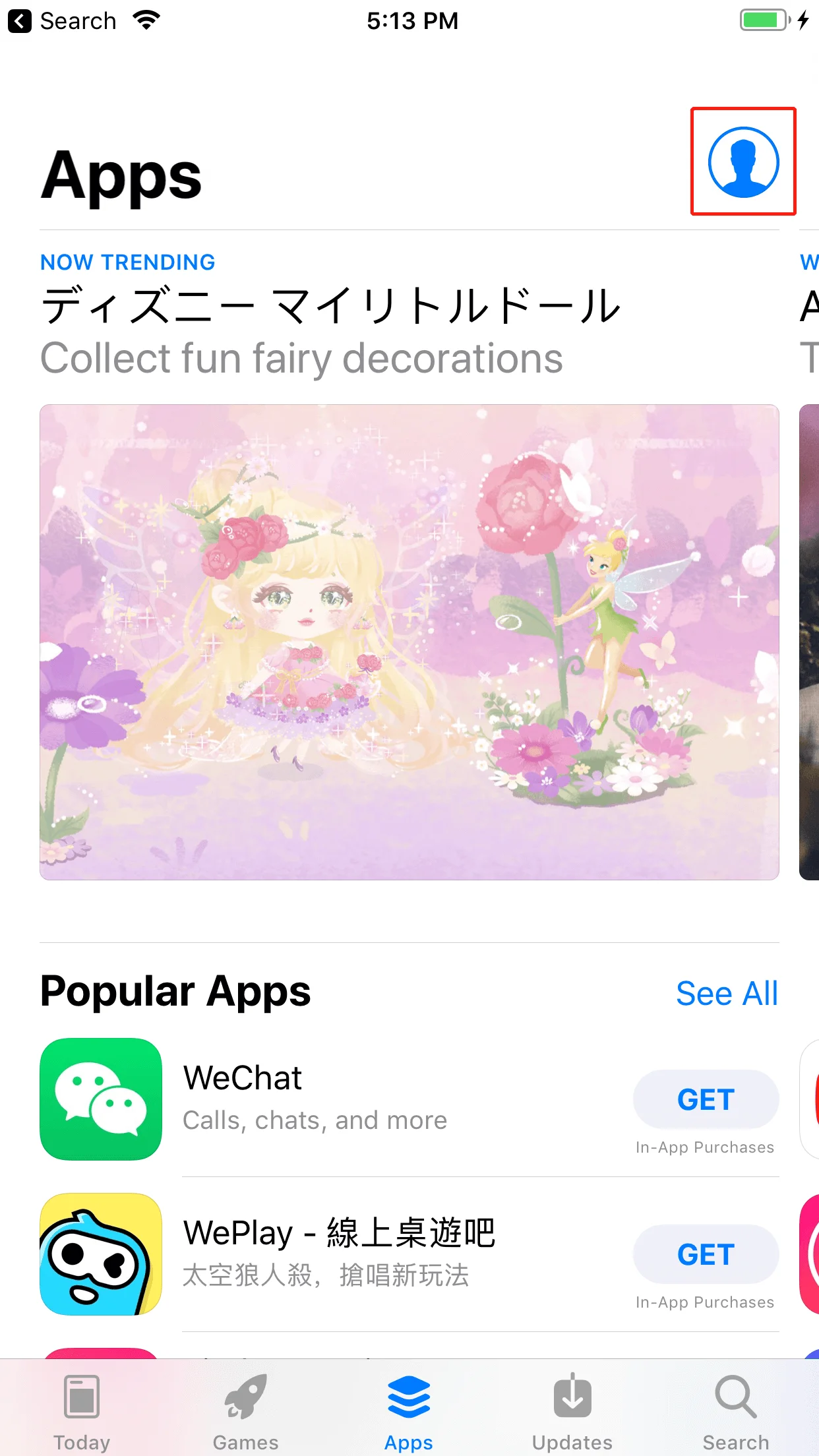
Open the App Store, click the icon at the top right of the windows.
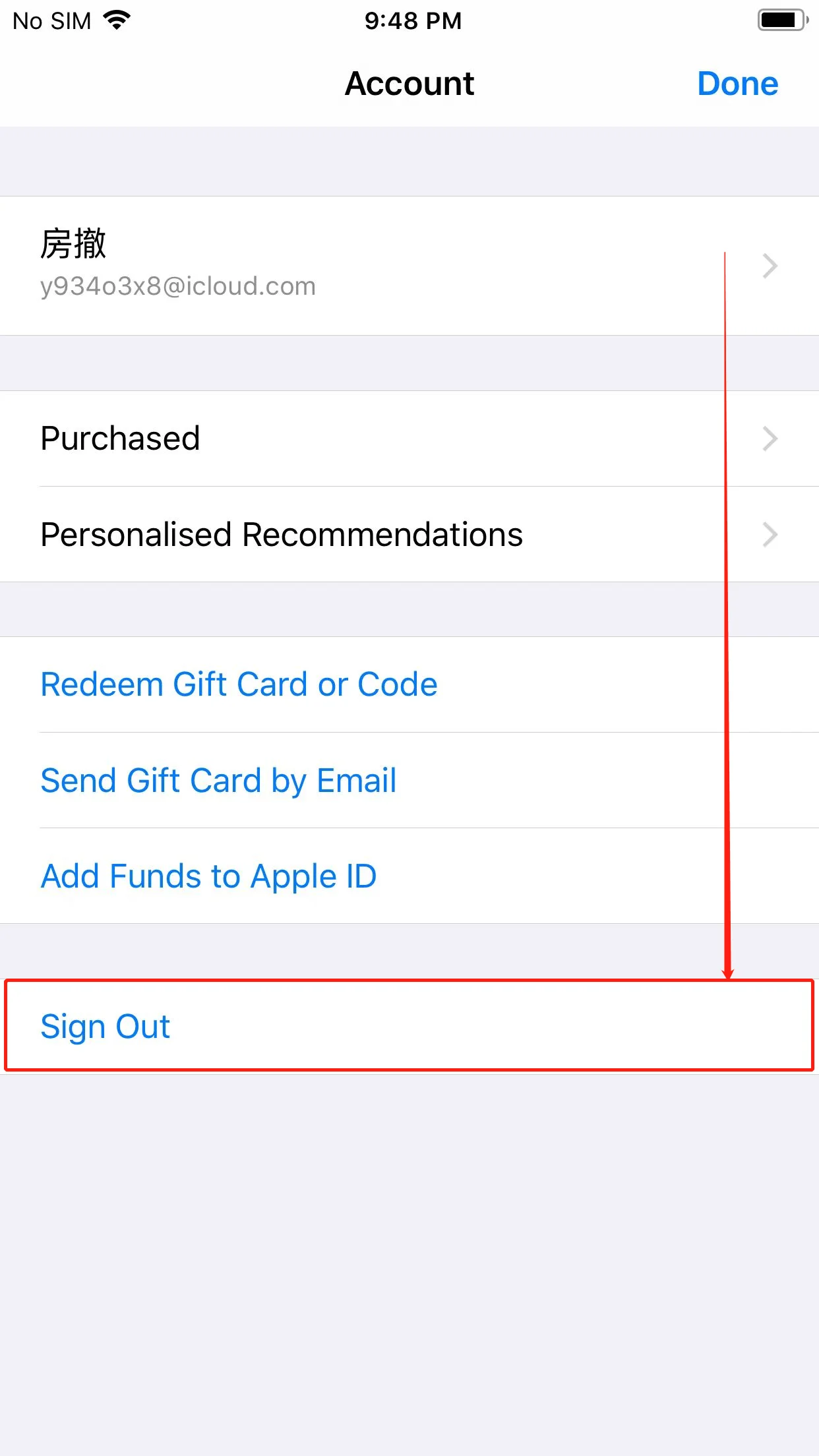
Scroll down to the end of the page, and select "Sign Out".
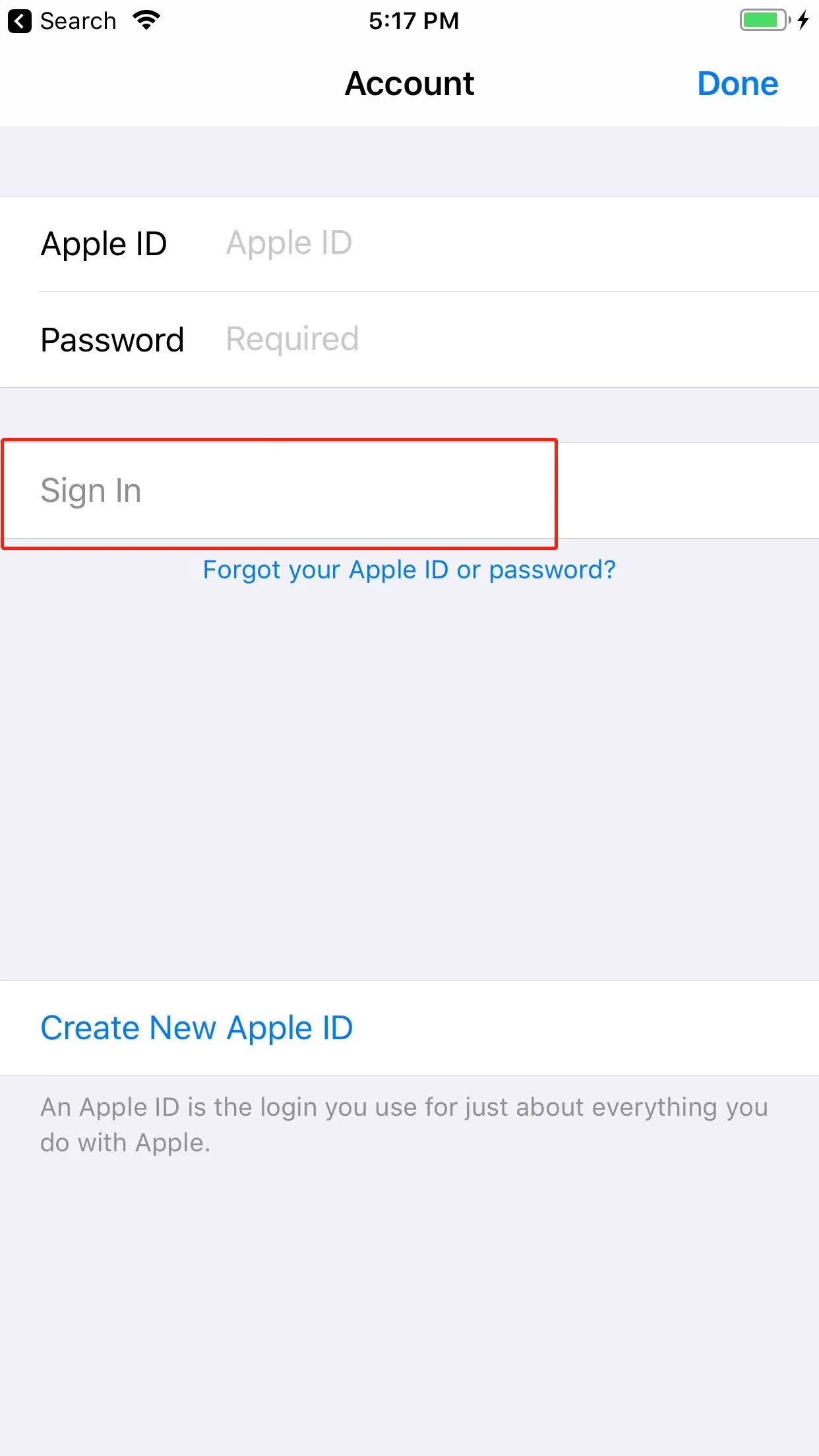
Login to the Hong Kong Apple ID you just registered, select "Sign In", do not click "Done" at the upper right corner.
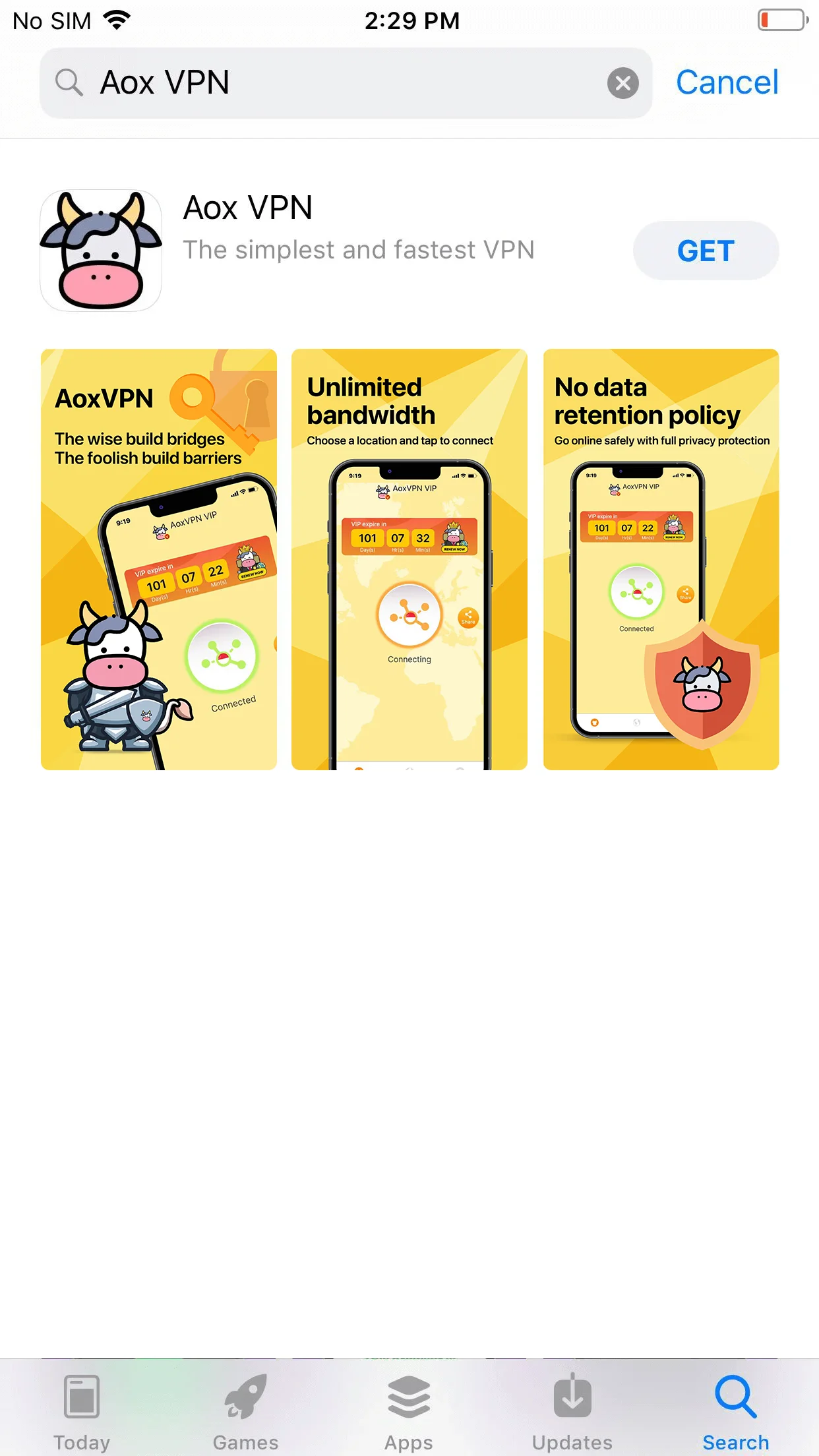
When the store content changes to Traditional Chinese, your region change is complete, and you can search for AoxVPN in the App Store. Please note that changing your region affects your entire Apple Account: active subscriptions, your account balance, and some previous purchases may not carry over. Apple also limits how often the region can be changed, so treat this as a lasting change rather than a temporary one.
Our team is available from 9:00 AM to 6:00 PM, Monday to Friday.
If you message outside of this time, we’ll respond as soon as we’re back!
 AoxVPN