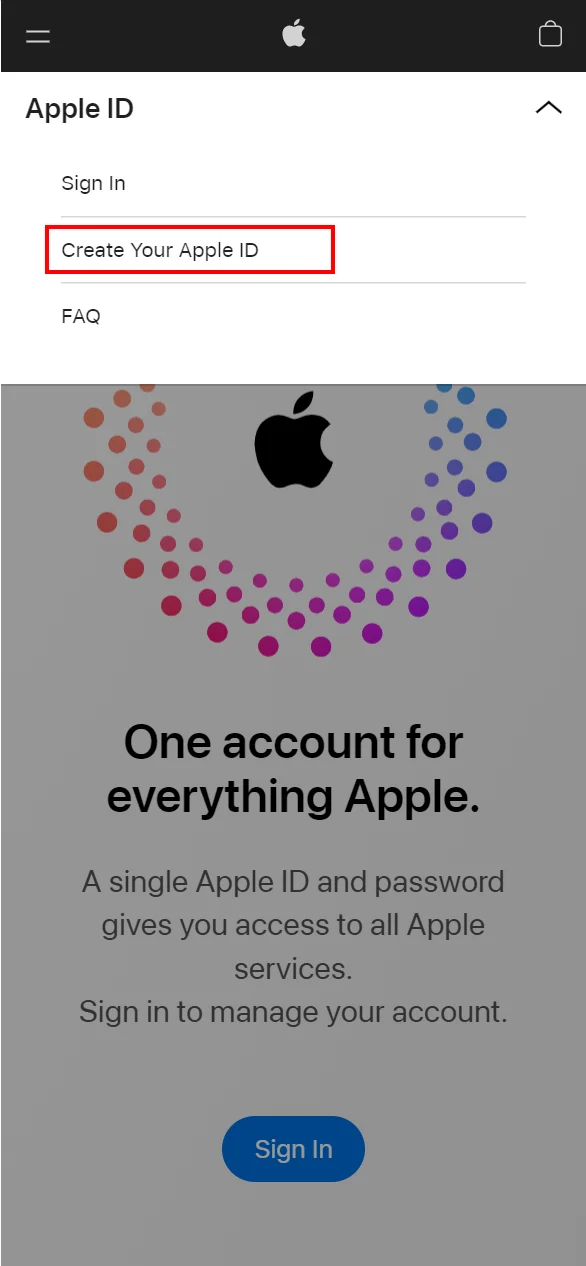
AoxVPN is not available in the mainland China App Store — if that does not describe you, VIP members can install via TestFlight instead. To begin, go to https://appleid.apple.com and select "Create Your Apple ID" at the top right of the page to create your new Apple ID account.
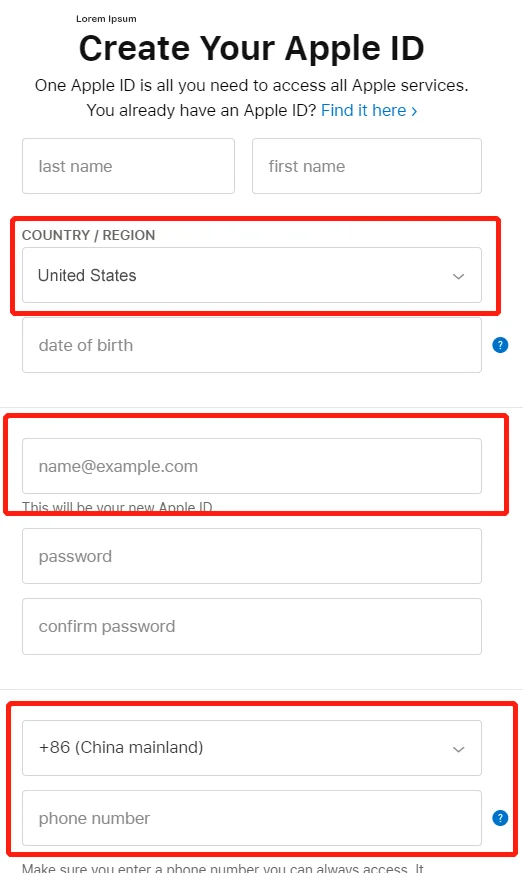
Enter your own accurate personal information in each field. For Country or Region, select the country where you are located and hold a valid payment method. Your email address must not already be registered to another Apple Account, as it will receive the verification code.
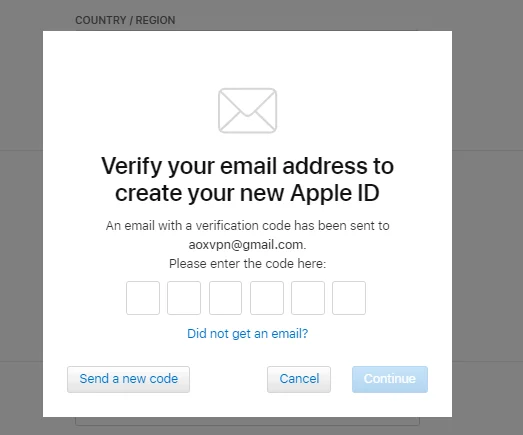
After key in all the information, it will direct to email verification.
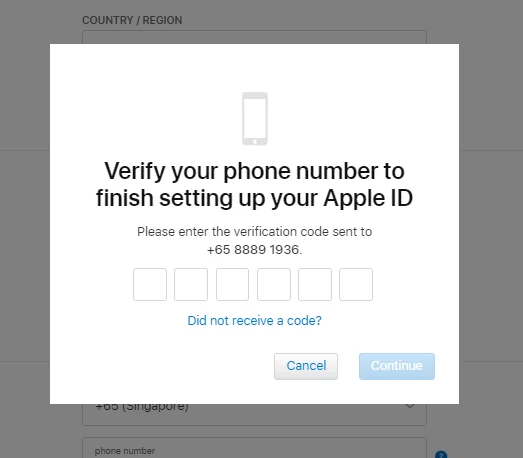
After entering the email verification, you will direct to mobile number verification.
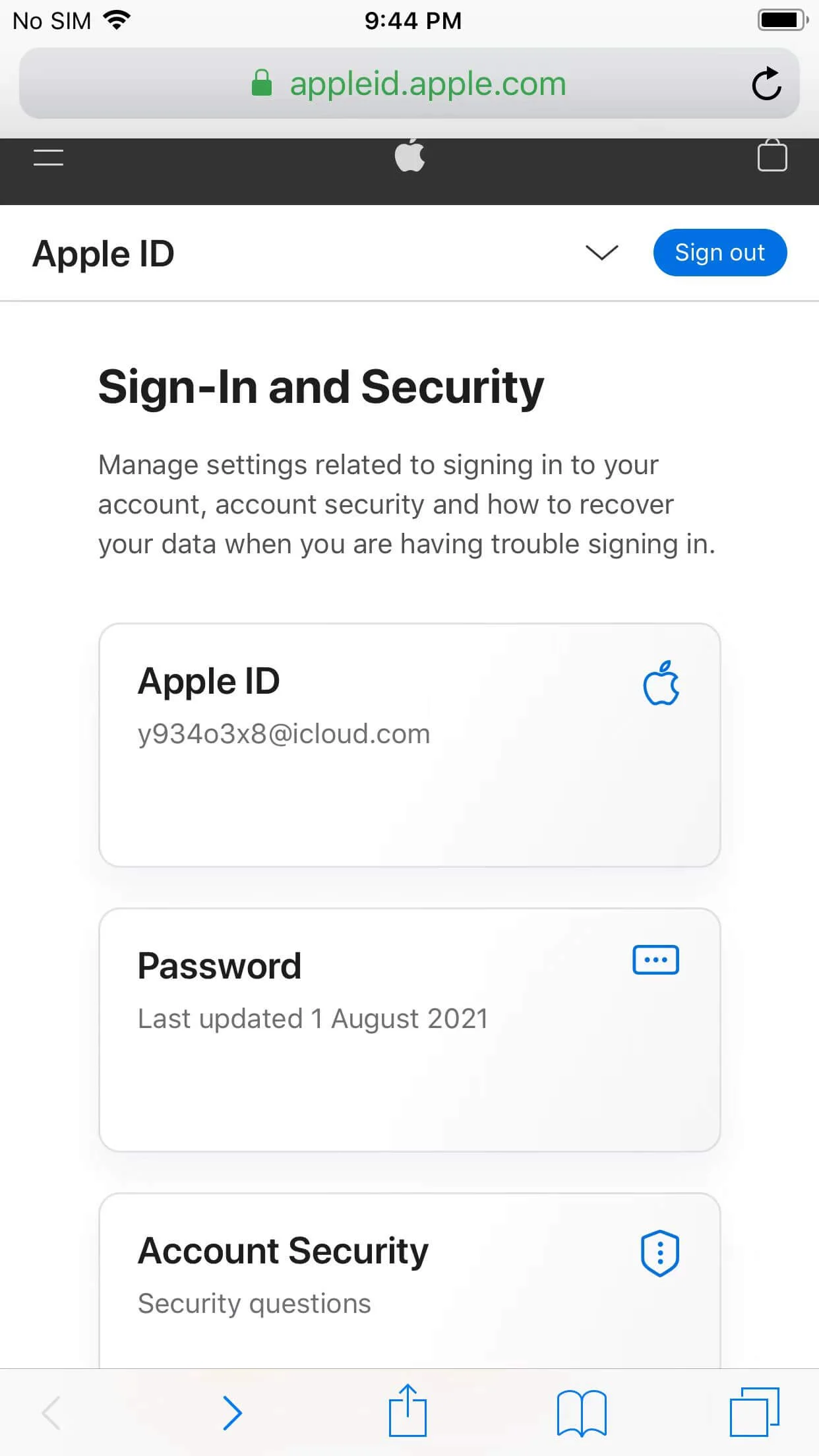
When you reach the Login and Security page, your Apple Account has been created successfully.
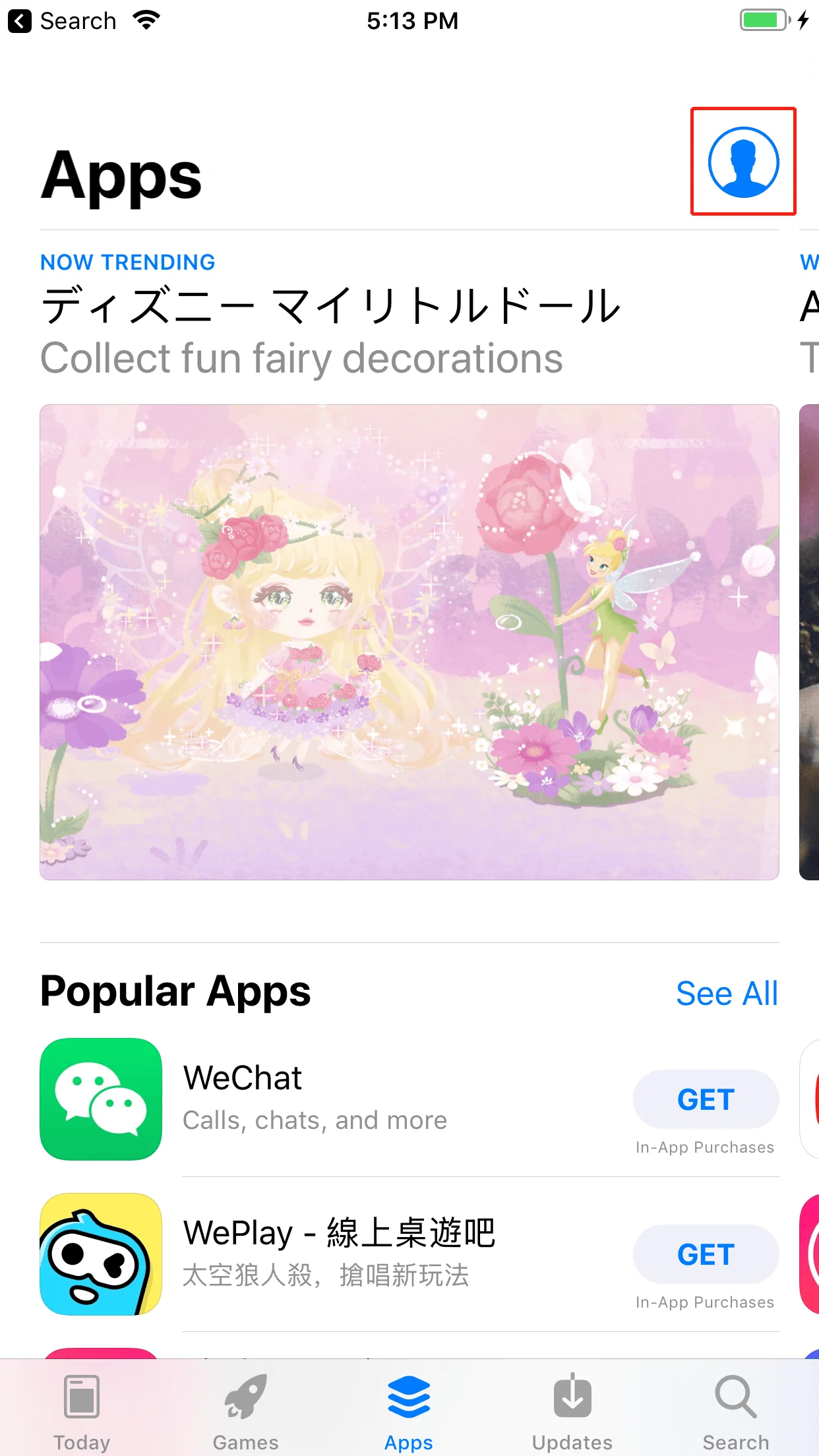
Open the App Store, click the icon at the top right of the windows.
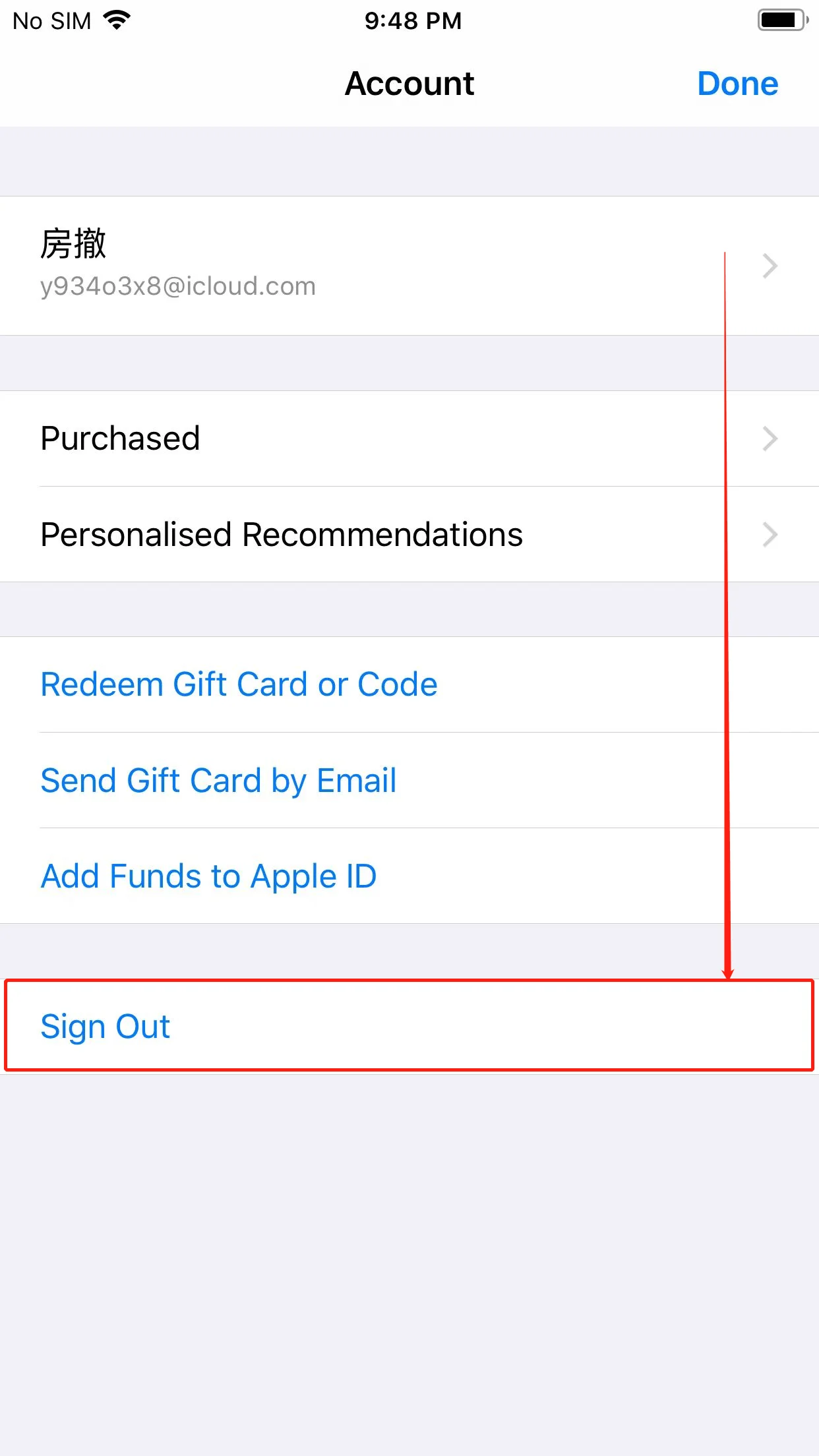
Scroll down to the end of the page, and select "Sign Out".
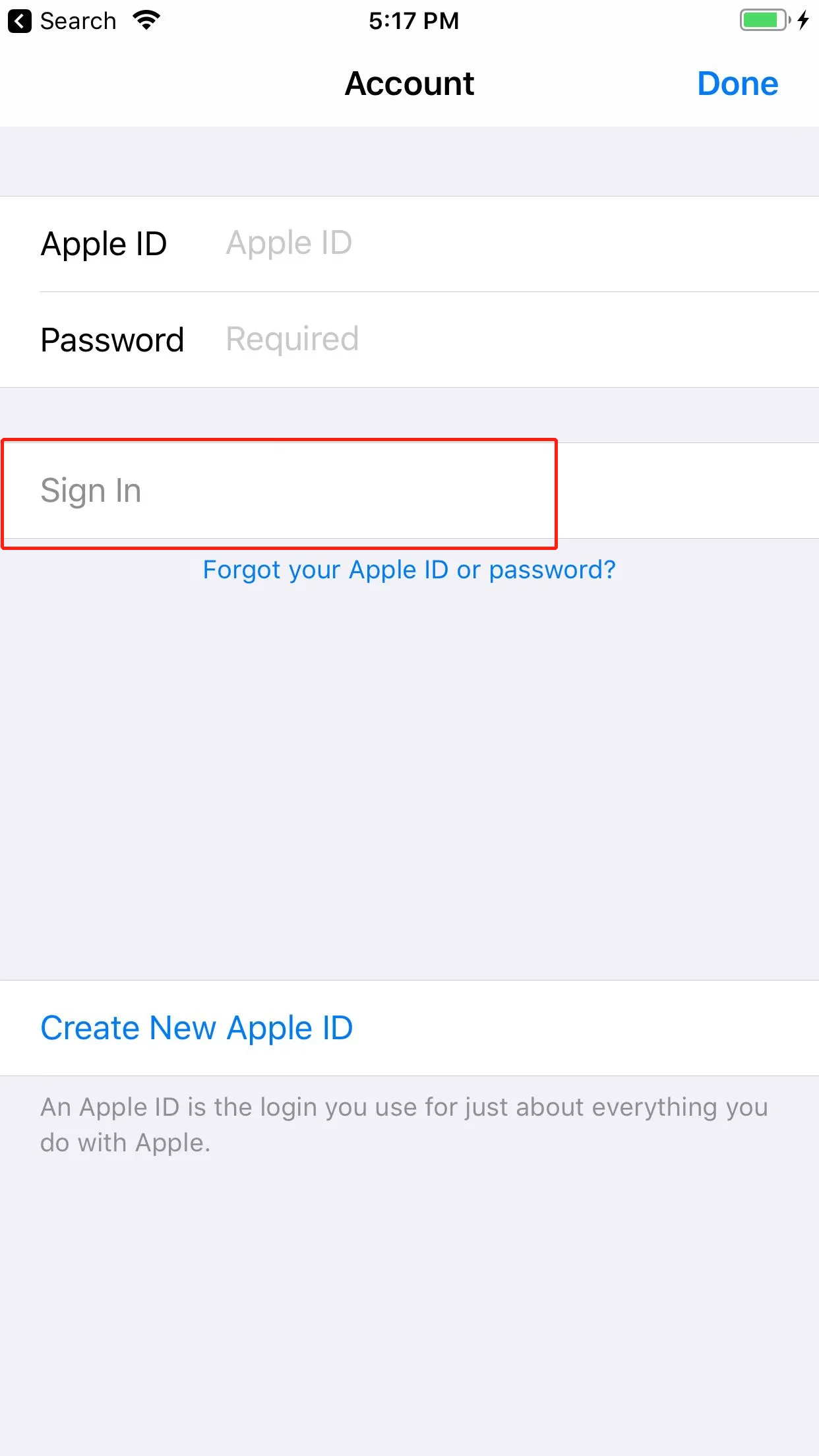
Sign in with the Apple Account you just created. Select "Sign In" — do not tap "Done" at the top right.
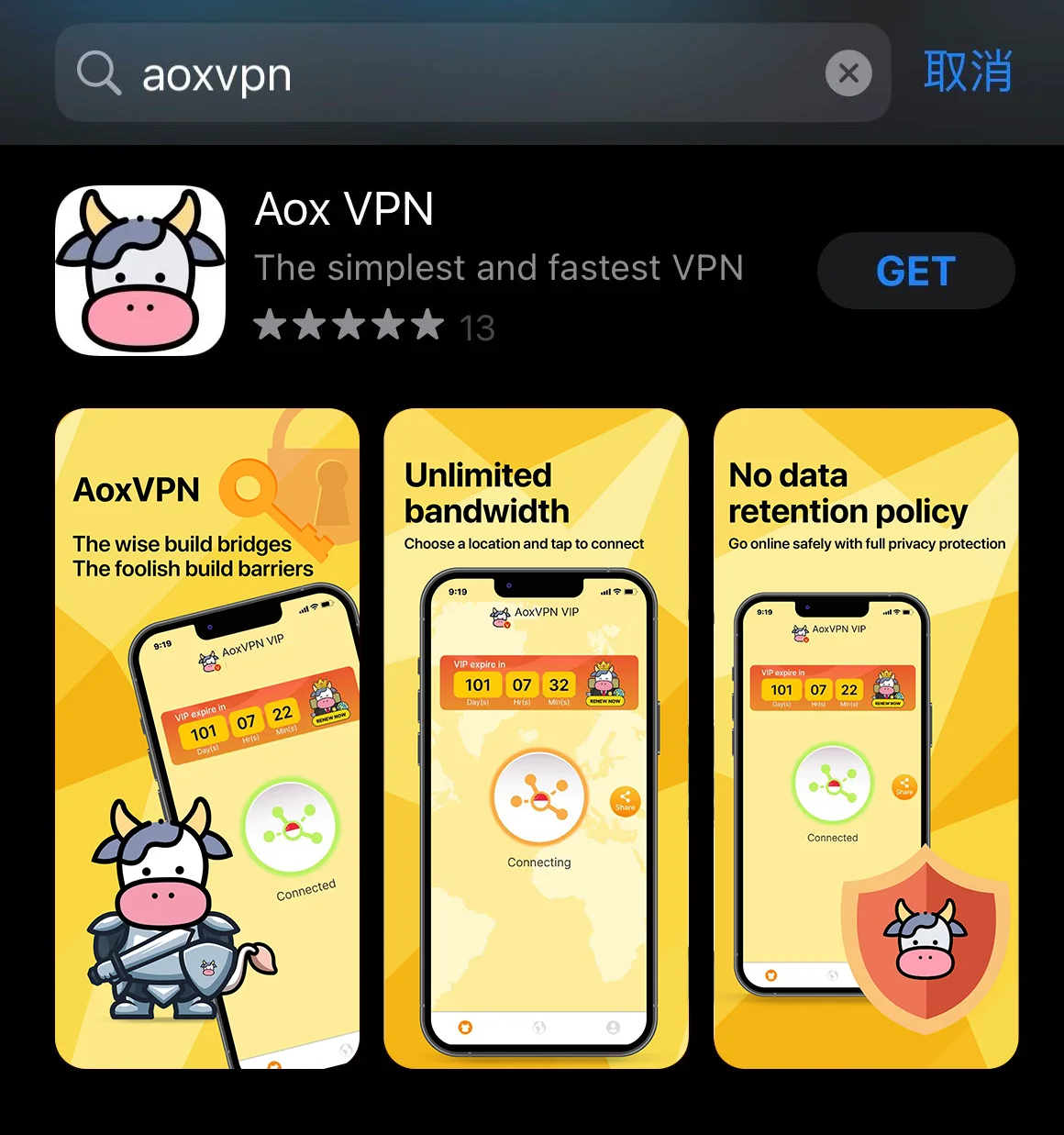
When the store content updates to match your account's region, you are signed in to that storefront. You can then search for AoxVPN in the App Store.
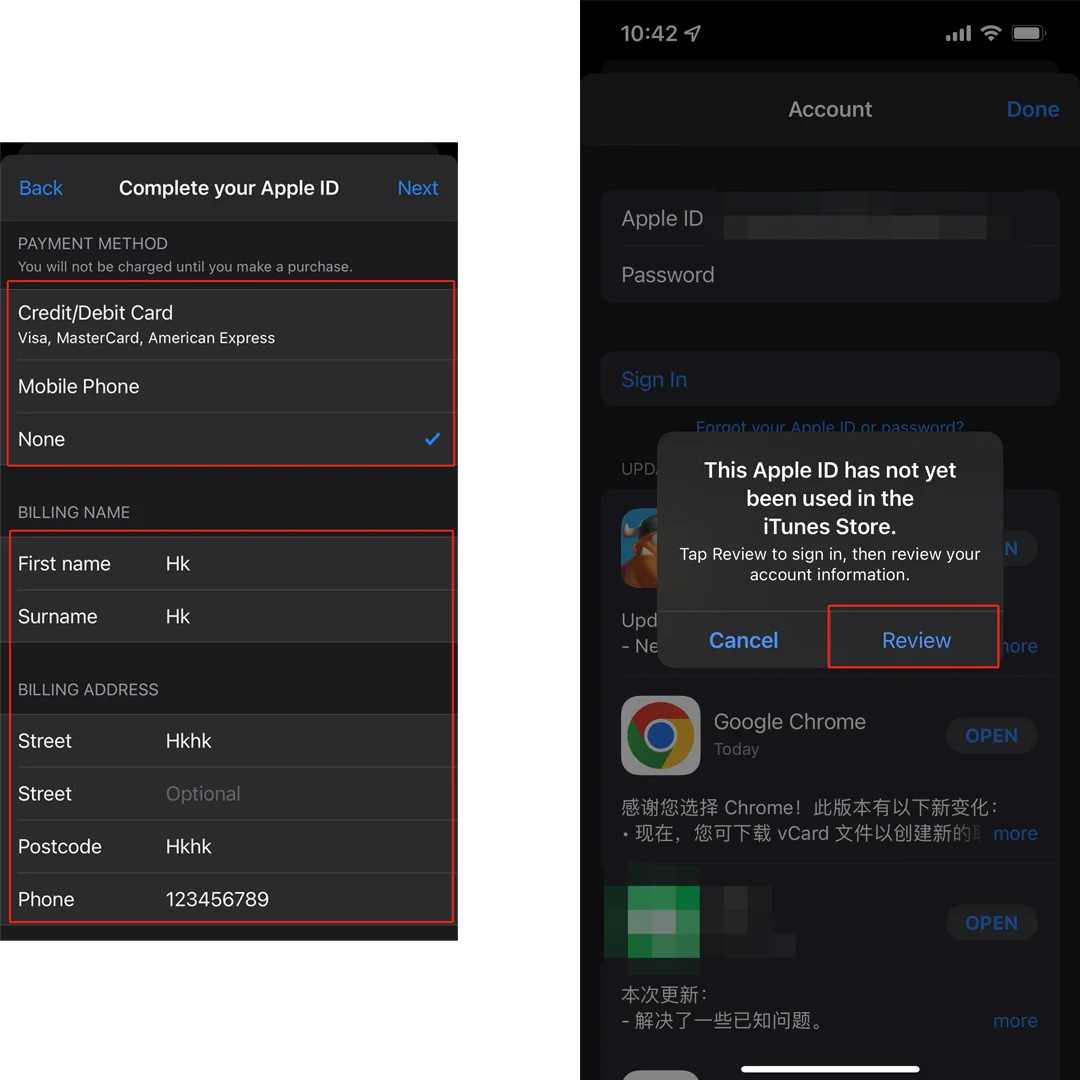
The first time you download an app with a new Apple ID, you'll be asked to complete your account details. Tap "Review" and follow the prompts. If you have no active subscriptions, you can select "None" as the payment method. Please enter your own accurate information for the remaining fields.
Our team is available from 9:00 AM to 6:00 PM, Monday to Friday.
If you message outside of this time, we’ll respond as soon as we’re back!
 AoxVPN